
# Project Management Workspace for Small Teams: How to Plan Work, Assign Owners, and Keep Context Together
Small teams often do not fail because they lack effort. They struggle because work is spread across too many places: task lists in one tool, chat in another, notes in a document, decisions in meetings, deadlines in calendars, and accountability in someone’s memory.
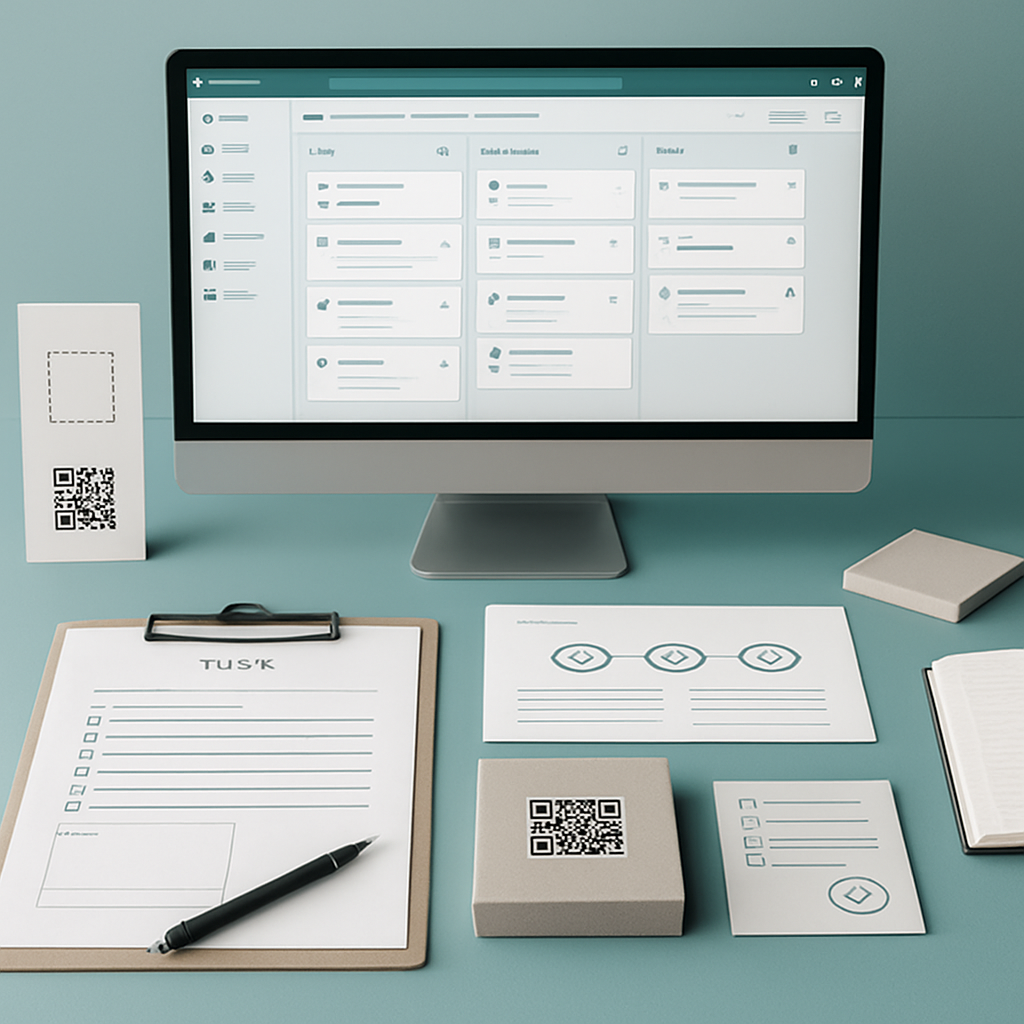
A **project management workspace for small teams** should reduce that fragmentation. It should give the team a practical place to capture work, assign owners, plan timelines, discuss execution, keep context close, and understand what changed.
That is the idea behind Borative Workspace OS: a focused operational workspace where tasks, planning, team communication, notes, workspace controls, activity history, and productivity add-ons can live closer together.
If your team is trying to move from scattered follow-up to clearer execution, you can Start free in Borative.
What is a project management workspace?
A project management workspace is a shared operating environment where a team organizes project work and the context around it.
Instead of treating project management as only a list of tasks, a workspace brings together the parts that help execution move forward:
- Tasks and subtasks
- Owners and responsibilities
- Priorities and due dates
- Statuses and progress signals
- Comments and task-level context
- Planning views and timelines
- Team communication
- Notes and supporting information
- Activity history and operational accountability
- Workspace access and role controls
For small teams, this matters because there is usually less room for coordination overhead. Founders, operators, consultants, agencies, remote teams, and project managers need enough structure to stay aligned without adding unnecessary process.
Why small teams outgrow basic task lists
A simple task list can work when there are only a few items and one person owns most of the work. But as soon as several people are involved, the list alone usually becomes insufficient.
Common symptoms include:
- Tasks exist, but ownership is unclear.
- Due dates are tracked, but dependencies live in chat.
- Decisions are made, but not attached to the work they affect.
- Managers ask for updates because status is not visible.
- People duplicate work because context is scattered.
- Notes and files are separated from execution.
- Team members rely on memory to know what changed.
A project management workspace helps by making the work easier to inspect. The goal is not to add bureaucracy. The goal is to make execution more visible and easier to coordinate.
For a broader look at this problem, see Work Management Software for Small Teams: How to Organize Tasks, Chat, Notes, and Accountability.
What a practical project management workspace should include
The best workspace for a small team is not necessarily the one with the most features. It is the one that helps the team answer the operational questions that come up every day:
- What needs to be done?
- Who owns it?
- When is it due?
- What is blocked?
- What changed recently?
- Where is the context?
- Who has access to this workspace or team area?
Borative is designed around these practical execution needs.
1. Capture work as tasks with enough context to act
A project task should contain more than a short title. When a task lacks context, the team has to reconstruct meaning through chat threads, meetings, or repeated questions.
In Borative, teams can capture work as tasks and enrich them with operational details such as:
- Subtasks
- Priorities
- Due dates
- Owners
- Comments
- Images and supporting context
- Statuses that show where work stands
This helps turn vague follow-up into visible work items. A task becomes a place where execution details can accumulate instead of being scattered across multiple tools.
2. Assign owners so accountability is visible
Small teams move quickly, but speed can create ambiguity. When everyone is involved, it is easy for no one to be clearly responsible.
A project management workspace should make ownership explicit. Owners help the team understand who is responsible for moving a task forward, responding to blockers, or updating status.
Borative supports owner assignment inside the workspace so responsibilities are visible near the work itself. This does not guarantee outcomes, but it can help reduce confusion about who is driving each item.
3. Use statuses to make progress easier to read
Without statuses, project updates often become manual check-ins:
- “Where are we on this?”
- “Is this done?”
- “Who is waiting on what?”
- “Did this already move forward?”
Statuses give the team a shared language for progress. They help turn task lists into an execution surface that can be reviewed quickly.
In Borative, tasks can move through clear statuses, helping teams understand what is pending, active, completed, or otherwise in motion depending on how the workspace is organized.
4. Plan timelines instead of managing only lists
Lists are useful for capture. Timelines are useful for coordination.
When a team needs to understand what is happening over time, due dates alone may not be enough. A planning surface helps show how work is distributed, what is coming next, and where timing may need attention.
Borative includes visual planning surfaces and timeline planning so teams can connect tasks, owners, dates, and updates into a clearer execution plan.
This is especially useful for:
- Product launches
- Client projects
- Agency deliverables
- Internal operations projects
- Founder-led execution plans
- Remote team coordination
- Weekly or monthly planning cycles
5. Keep discussion close to the work
One of the biggest project management problems is the gap between conversation and execution.
A decision may happen in chat, but the task remains unchanged. A question may be answered in a direct message, but the rest of the team cannot see the context. A blocker may be discussed in a team channel, but no one updates the project plan.
Borative supports direct messages, team chats, mentions, reactions, realtime notifications, and presence. The value is not simply having chat. The value is having communication inside the same operational environment as the work.
That makes it easier for teams to discuss execution without constantly switching tools or losing the thread between conversation and task progress.
6. Use notes for supporting context
Not every piece of project context belongs inside a task title or comment. Teams also need lightweight places to capture notes, ideas, summaries, instructions, and working context.
Borative includes notes and productivity add-ons such as Easy note, alongside other possible workspace utilities depending on access and plan configuration. This helps teams keep supporting information near the operational canvas instead of sending everything to separate documents or personal notes.
For small teams, this is useful because documentation often starts informally. A practical workspace should make it easier to capture context before it disappears.
7. Review activity history and operational changes
As projects grow, teams need a way to understand what happened.
Activity history can support operational accountability by showing updates and workspace activity over time. It gives owners, admins, and team leads more visibility into changes without relying only on memory or manual reporting.
Borative includes workspace activity history, task comments, audit-oriented activity records, and related workspace controls. These features are designed to support visibility and accountability inside the workspace. They should not be treated as a replacement for formal legal, compliance, HR, or accounting systems.
For more on this topic, read Workspace Controls for Teams: How to Manage Access, Roles, and Operational Accountability.
8. Manage access, roles, and team scopes
Project visibility is not only about tasks. It is also about who can access the workspace and how teams are structured.
A small team may have:
- Founders and operators
- Internal contributors
- Contractors
- Client-facing project members
- Admins who manage the workspace
- Owners responsible for execution areas
Borative supports personal workspaces, shared workspaces, team scopes, owner and admin roles, join requests, access codes, and membership controls. These controls help teams organize access around the way work is actually managed.
The goal is practical governance: clearer membership, clearer roles, and better operational boundaries inside the workspace.
9. Use dashboards and summary metrics to inspect execution
Small teams do not always need complex reporting. But they do need visibility.
Operational dashboards and summary metrics can help a team understand the state of work without manually compiling updates every time. When tasks, owners, dates, and statuses live in the same workspace, the team has a better foundation for reviewing progress.
In Borative, operational dashboards and summary metrics are part of the workspace experience, helping teams inspect execution and spot where attention may be needed.
How Borative works as a project management workspace
Borative Workspace OS brings multiple execution layers into one focused product:
- Task management for capturing and organizing work
- Subtasks, priorities, owners, due dates, comments, and images
- Statuses and planning surfaces for execution visibility
- Timeline planning for scheduling and coordination
- Team chats, direct messages, mentions, reactions, and notifications
- Notes and add-ons for supporting productivity workflows
- Workspace membership, team membership, owner/admin roles, join requests, and access codes
- Workspace activity history and audit-oriented records
- Account controls, subscription management, seat management, and plan gates
This makes Borative especially relevant for small teams that want to reduce tool switching while keeping work, context, and controls closer together.
A simple workflow for running projects in Borative
Here is a practical way to structure a small-team project inside a workspace.
Step 1: Create the workspace or team scope
Start by creating the workspace for the project, department, client, or operating area. Use shared workspaces and team scopes where collaboration is needed.
Step 2: Add the core work as tasks
Capture the project work as clear tasks. Avoid vague items like “marketing” or “client work.” Instead, use action-oriented task names such as:
- Draft landing page copy
- Review client onboarding checklist
- Prepare launch timeline
- Assign QA owner
- Publish weekly project update
Step 3: Add owners, dates, and priorities
For each important task, define who owns it, when it is due, and how important it is. This makes the workspace easier to review and reduces repeated clarification.
Step 4: Break larger work into subtasks
If a task has multiple steps, use subtasks to make the work more actionable. This helps owners track progress without creating too many disconnected tasks.
Step 5: Keep discussion attached to execution
Use comments, team chat, direct messages, mentions, and notifications to keep communication moving. When a discussion changes the plan, update the related task so the workspace remains accurate.
Step 6: Review timeline and status regularly
Use planning views, timelines, statuses, dashboards, and summary metrics to review the project. A lightweight weekly review can help the team understand what moved, what is blocked, and what needs attention next.
Step 7: Use activity history for accountability
When questions come up about changes, decisions, or updates, use workspace activity history and task comments to inspect what happened. This supports better operational awareness without depending only on memory.
Project management workspace vs. traditional project management tool
A traditional project management tool often focuses heavily on tasks, deadlines, and reporting. A project management workspace takes a broader view.
It connects execution with the surrounding context:
| Need | Basic task tool | Project management workspace | | --- | --- | --- | | Task capture | Usually supported | Supported with owners, context, comments, and statuses | | Team communication | Often separate | Closer to the workspace through chat and notifications | | Notes | Often separate | Can live near project context | | Timeline planning | Sometimes limited | Connected to tasks, dates, and execution views | | Access controls | Varies | Workspace and team membership with role checks | | Activity history | Varies | Supports operational visibility and accountability | | Add-ons | Often external | Can extend the workspace depending on plan and access |
For small teams, the advantage is focus. Instead of managing the project in one system and the surrounding context in several others, a workspace helps keep more of the operational picture together.
Who should use a project management workspace?
A project management workspace is useful for teams that need coordination without excessive overhead.
Borative is a good fit for:
- Founders coordinating product, operations, and growth work
- Small teams managing execution across roles
- Project managers who need task visibility and context
- Operations teams that track recurring and cross-functional work
- Agencies managing client deliverables and internal follow-up
- Consultants organizing projects, notes, and communication
- Remote teams that need clearer async coordination
- Team leads who want owners, statuses, and activity history in one place
It is especially useful when work is currently split across task tools, chat tools, notes apps, spreadsheets, and ad hoc reminders.
What to look for when choosing a project management workspace
Before choosing a workspace, evaluate whether it helps your team operate more clearly.
Use this checklist:
- Can you capture tasks with owners, priorities, due dates, and context?
- Can you break larger work into subtasks?
- Can the team discuss work without losing decisions?
- Can you plan timelines and review what is coming next?
- Can admins and owners manage workspace access?
- Can you see activity history or updates over time?
- Can the workspace support both personal and shared work?
- Can add-ons extend the workspace without scattering context?
- Can billing, seats, and access be managed clearly if the team grows?
The right workspace should make your team’s operating rhythm easier to inspect and maintain.
FAQ
What is the best project management workspace for a small team?
The best project management workspace for a small team is one that matches how the team actually works. It should help capture tasks, assign owners, plan timelines, communicate around work, keep notes close, and manage access clearly. Borative is designed for small teams that want these operational layers in one focused workspace.
How is a project management workspace different from a task manager?
A task manager usually focuses on to-dos, due dates, and completion. A project management workspace includes task management but also brings in communication, notes, planning views, activity history, workspace controls, and operational context.
Can Borative replace every tool my team uses?
Borative can help reduce tool switching by bringing tasks, planning, chat, notes, controls, and workspace context into one product. It should not be described as a guaranteed replacement for every specialized tool, legal system, accounting system, HR system, or external integration your team may use.
Does Borative support team communication?
Yes. Borative supports team chats, direct messages, mentions, reactions, realtime notifications, and presence. These communication features are designed to help teams coordinate work inside the same operational environment where tasks and planning live.
Does Borative include audit trails?
Borative includes workspace activity history, task comments, and audit-oriented activity records that can support operational visibility and accountability. These features help teams understand updates and changes, but they are not a substitute for formal compliance or legal recordkeeping systems.
Are Borative add-ons included in every plan?
Borative has an add-on system that can extend the workspace with utilities such as notes, calculators, translators, calendar or timeline tools, and other productivity modules. Add-on access may depend on plan gates, subscription configuration, or workspace settings.
Build a clearer project management workspace in Borative
A small team does not need more scattered follow-up. It needs a clearer way to plan work, assign ownership, discuss execution, track changes, and keep context close to the tasks that matter.
Borative Workspace OS is designed to support that operating rhythm with tasks, planning, chat, notes, workspace controls, activity history, dashboards, and add-ons in one focused workspace.
You can Start free in Borative or create your workspace when you are ready to organize execution with more clarity.
Internal-link suggestions
Run the work where the context lives
Borative brings tasks, teams, chat, notes, add-ons, timeline planning, audit, and workspace controls into one operational canvas.
Start free